BetterDisplay
Make every display work better with your Mac. BetterDisplay is the advanced display manager for macOS - unlock precise HiDPI scaling, custom resolutions, hardware brightness and volume control, XDR and HDR extra brightness, virtual screens and more, right from the menu bar.
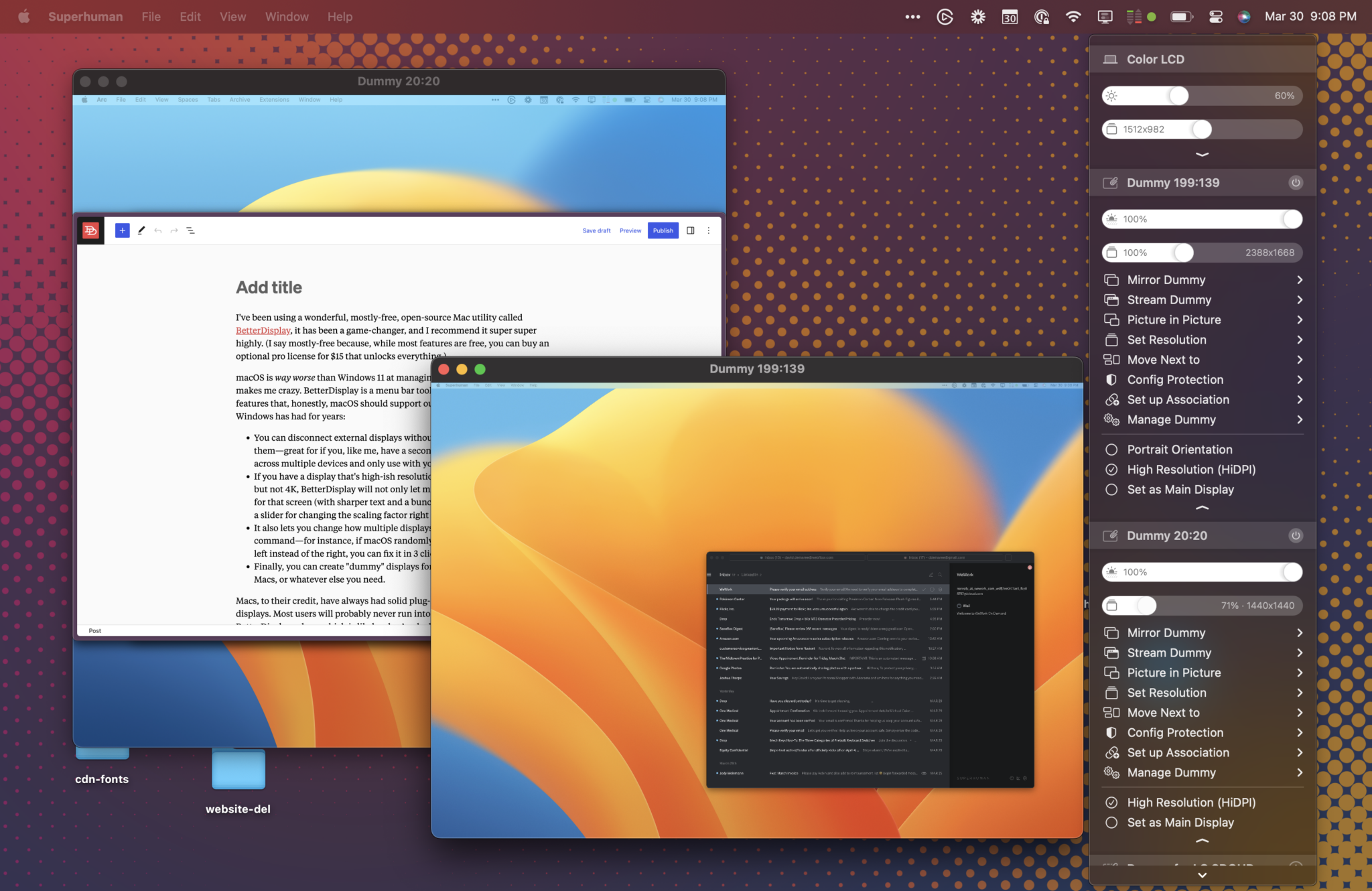
Everything macOS display settings leave out
Simple controls stay one click away in the menu bar, and deeper configuration is there only when the setup demands it - so one app scales from a single monitor to a multi-screen, multi-Mac workstation.
Sharp, flexible HiDPI scaling
Choose the balance of sharpness, workspace and UI size that actually fits the display. Create custom scaled resolutions, set favorites and switch from the menu bar or a smooth slider - even on high-refresh, HDR, ultrawide and notched screens.
Brightness, volume & input control
Control external monitors without reaching for their buttons. On compatible displays BetterDisplay adjusts backlight brightness, speaker volume, mute, power and active input over hardware DDC - or via software image adjustment when DDC is unavailable.
XDR & HDR extra brightness
Push compatible XDR and HDR displays well beyond the standard macOS slider - up to 1600 nits on supported Apple displays. At the other end, combined hardware and software dimming can take a too-bright panel all the way down to black.
One menu-bar control center
Change resolution, refresh rate, rotation, brightness, volume, color profile, input or arrangement from a compact menu - without repeatedly opening System Settings. Organize controls per display or synchronize them across groups.
Consistent multi-monitor setups
Stop rebuilding your layout after every restart or dock connection. Protect resolution, refresh rate, VRR, rotation and color profile, match UI scale across screens, and keep a predictable arrangement using layout anchor points.
Connect & disconnect without unplugging
Soft-disconnect a display so macOS removes it from the desktop arrangement, then reconnect it when needed - no cable swap. Ideal for docked MacBooks, shared monitors and screens used only for specific tasks.
Virtual screens without limits
Create virtual displays with the resolution, aspect ratio, orientation and refresh rate a workflow needs - for remote access, headless Macs, recording, streaming, presentations and testing. Compatible hardware supports HDR and high-refresh virtual displays.
Picture in Picture & local streaming
Turn any real or virtual display into a floating Picture in Picture window, or stream one display to another locally. Crop, rotate, flip or reposition the source - including portrait Sidecar layouts and DIY teleprompter setups.
Advanced color, signal & EDID
Select color profiles and XDR presets from the menu bar, switch SDR and HDR profiles automatically, and reach color modes, chroma subsampling, HDMI range and refresh options macOS usually hides. Create EDID overrides when a display reports incorrect capabilities.
Built for your Mac setup
From a single external monitor to docked MacBooks, ultrawides, HDR creative work, remote servers and AV systems - find the setup that matches yours.
External 4K & 1440p monitors
Sharper text, more useful scaling options, keyboard brightness control and a UI size that actually fits the screen - beyond the limited presets macOS offers by default.
Ultrawide & non-standard displays
Create resolutions and aspect ratios that match the panel and how it is used, then protect the configuration so macOS does not replace it unexpectedly.
Docked MacBook workstations
Synchronize multiple monitors, disconnect the built-in display, preserve the desktop layout and control every screen from a single menu.
Creative & HDR work
Reach XDR and HDR brightness tools, color profiles and XDR presets, automatic SDR and HDR profile switching, color adjustments and detailed signal settings.
Developers & technical users
Automate display configurations with the BetterDisplay CLI, shell scripts, HTTP requests, custom URLs, macOS Shortcuts and App Intents.
Remote & headless Macs
Create high-resolution HiDPI virtual screens for remote desktop access on servers, Mac minis, lab systems and machines with no permanently connected monitor.
TVs, projectors & AV systems
Enable Night Shift on a television, control supported LG webOS, Samsung Tizen and Philips Android TVs over the network, and adjust HDMI color or range settings.
Presentations, streaming & recording
Use Picture in Picture, virtual displays, local streaming, custom aspect ratios, teleprompter mode, portrait Sidecar, cropping, rotation and video filters.
BetterDisplay Free and BetterDisplay Pro
Start free, then unlock the complete feature set with a 14-day trial. The Pro license is perpetual - not a subscription.
BetterDisplay Free
Download the full application and keep the included free features for personal, non-business use - a practical set of display controls without an immediate purchase.
BetterDisplay Pro
Unlock the complete feature set: advanced HiDPI scaling, virtual screens, configuration protection, extended brightness tools, synchronization, streaming, Picture in Picture, advanced shortcuts and EDID overrides. The license is perpetual and includes at least one year of free updates.
Business use requires a license after the trial period, including use of the free features.
Compatibility
The current BetterDisplay v5.x release runs on Apple Silicon and Intel Macs. Some features depend on the connected hardware and the connection path.
Current release
- macOS 27 Golden Gate
- macOS 26 Tahoe
- Apple Silicon Macs
- Intel Macs
Earlier macOS (legacy builds)
- macOS Sequoia (BetterDisplay 4)
- macOS Sonoma (BetterDisplay 4)
- macOS Ventura 13.2+ (BetterDisplay 4)
- macOS Monterey
- macOS Big Sur
- macOS Catalina
- macOS Mojave
Hardware brightness, volume, input and power control require a DDC-capable display and a compatible connection. Flexible scaling depends on the macOS version, GPU, display and connection type. XDR and HDR brightness upscaling requires a compatible Apple XDR display or a natively connected external HDR display (VESA DisplayHDR 600 or higher recommended).
Built in public, private by design
An open-source heritage and a privacy-first approach - the reasons BetterDisplay is trusted across a wide range of Macs, monitors and workflows.
From BetterDummy to BetterDisplay
BetterDisplay began as BetterDummy, an open-source utility focused on virtual displays and HiDPI scaling for Macs with external monitors and remote systems. As it grew to manage real displays, brightness, color, DDC, HDR, streaming and automation, it became BetterDisplay - developed by @waydabber at Kodeon Software and still evolving through active development and community feedback.
Privacy without a marketing machine
BetterDisplay keeps no marketing mailing list, builds no usage database, and collects no identifiers for behavioral analytics. Network use is limited to licensing through Paddle, crash diagnostics through Sentry, and software updates via the built-in updater and GitHub - and you can disable all network communication entirely.
Frequently asked questions
Stop adapting to display limitations
The right monitor should not need the wrong resolution, a multi-screen workspace should not rearrange itself, and a headless Mac should not be stuck on a low-resolution remote desktop. Get the latest verified release from the developer's GitHub - free features included, full Pro access for 14 days.
BetterDisplay 5.0.6 · macOS 26 Tahoe & 27 Golden Gate · Apple Silicon & Intel
Install manually
- Download the BetterDisplay DMG.
- Open the downloaded file.
- Move BetterDisplay to the Applications folder.
- Launch BetterDisplay from Applications, Launchpad or Spotlight.
- Open the BetterDisplay icon in the menu bar to configure your connected displays.
Install with Homebrew
Prefer the command line? Install the cask:
brew install --cask betterdisplay